
Technical SEO Basics: 10 Fixes That Get You Faster Rankings in Google
Technical SEO is the foundation everything else sits on. You can write the best content in the world, but if Google can’t crawl your site, can’t index your pages, or your site loads like it’s running on a 2005 server, none of that content matters. It’s invisible. I’ve audited hundreds of websites over 30 years and the same technical issues show up over and over — costing businesses rankings, traffic, and leads every single day.
The good news? Most technical SEO problems are fixable. Some take 5 minutes. Some take an afternoon. All of them make a measurable difference in how Google evaluates and ranks your site. Here are the 10 most common technical SEO issues I find and exactly how to fix each one.
From the auditor: Dennis Ocasio has run technical SEO audits on 200+ small business websites in Central Florida over 30 years. Every fix on this list came from real client sites — not hypotheticals. Section 8 even covers an issue we found on this very website.
1. Slow Page Speed

Google has used page speed as a ranking signal since 2010, and since 2021 it measures specific Core Web Vitals metrics: Largest Contentful Paint (how fast your main content loads), Interaction to Next Paint (how quickly the site responds to user actions), and Cumulative Layout Shift (how much the page jumps around while loading).
If your site takes more than 3 seconds to load on mobile, you’re losing both rankings and customers. Google/Deloitte research shows that bounce rate increases 32% as load time goes from 1 to 3 seconds. At 5 seconds, bounce rate increases 90%.
How to fix it:
- Compress images: This is the #1 speed killer. A single uncompressed hero image can be 5MB. Use WebP format, compress to under 200KB, and use lazy loading for images below the fold
- Install a caching plugin: WP Rocket (paid, recommended) or LiteSpeed Cache (free if your host supports it). Caching alone can cut load times in half by serving pre-built pages instead of rebuilding from scratch on every visit
- Use a CDN: Cloudflare (free tier) stores copies of your site on servers worldwide. Visitors load from the closest server, reducing latency
- Upgrade hosting: Shared hosting at $3/month puts your site on a server with hundreds of other sites. Managed WordPress hosting ($25-$50/month) provides dedicated resources and dramatically faster load times
- Minimize render-blocking resources: Defer non-critical JavaScript, inline critical CSS, and load scripts asynchronously
Test your speed at pagespeed.web.dev. Aim for 80+ on mobile. Our complete speed optimization guide covers every technical detail.
2. Missing or Duplicate Title Tags and Meta Descriptions

Every page on your website needs a unique title tag (under 60 characters) and meta description (under 160 characters) that includes your target keyword. These are what appear in Google search results — they’re your ad copy for organic search.
Common problems I find:
- Same title on every page: “Home – Company Name” on every single page. Google can’t tell your pages apart
- Missing meta descriptions: Google auto-generates one from your page content, which usually looks terrible in search results
- Titles that are too long: Google truncates titles over 60 characters with “…” — cutting off your most important keywords
- No keyword in the title: Your title tag is one of the strongest on-page ranking signals. If your keyword isn’t there, you’re missing a fundamental optimization
How to fix it: Use SEOPress (or your SEO plugin of choice) to set custom title tags and meta descriptions for every page. Follow this formula: [Primary Keyword] | [Modifier] | [Brand Name]. Example: “Web Design Company Orlando | Custom Websites for Small Business | Ocasio Consulting”
3. Broken Internal Links (404 Errors)
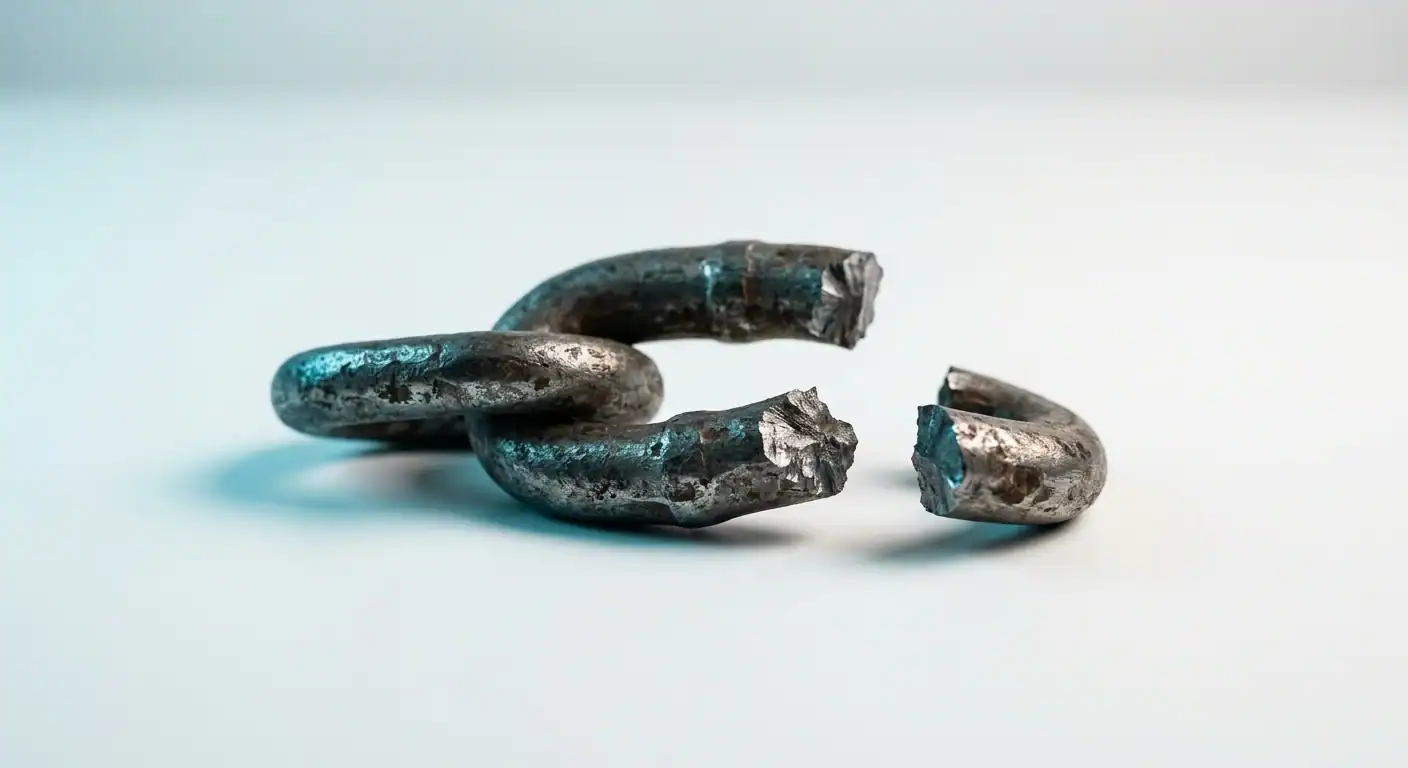
Links on your site that point to pages that don’t exist create 404 errors. These waste Google’s crawl budget (the number of pages Google bothers to crawl on your site), create dead ends for visitors, and signal to Google that your site isn’t well-maintained.
Broken links accumulate over time as you delete pages, change URLs, or remove products. A site that’s been active for a few years might have dozens of broken links without anyone knowing.
How to fix it: Run a crawl using Screaming Frog (free for up to 500 URLs) or the SEOPress broken link checker. Fix each broken link by either updating the URL to the correct page or setting up a 301 redirect to the most relevant existing page. Check monthly — new broken links appear as you update content.
4. Missing or Misconfigured XML Sitemap
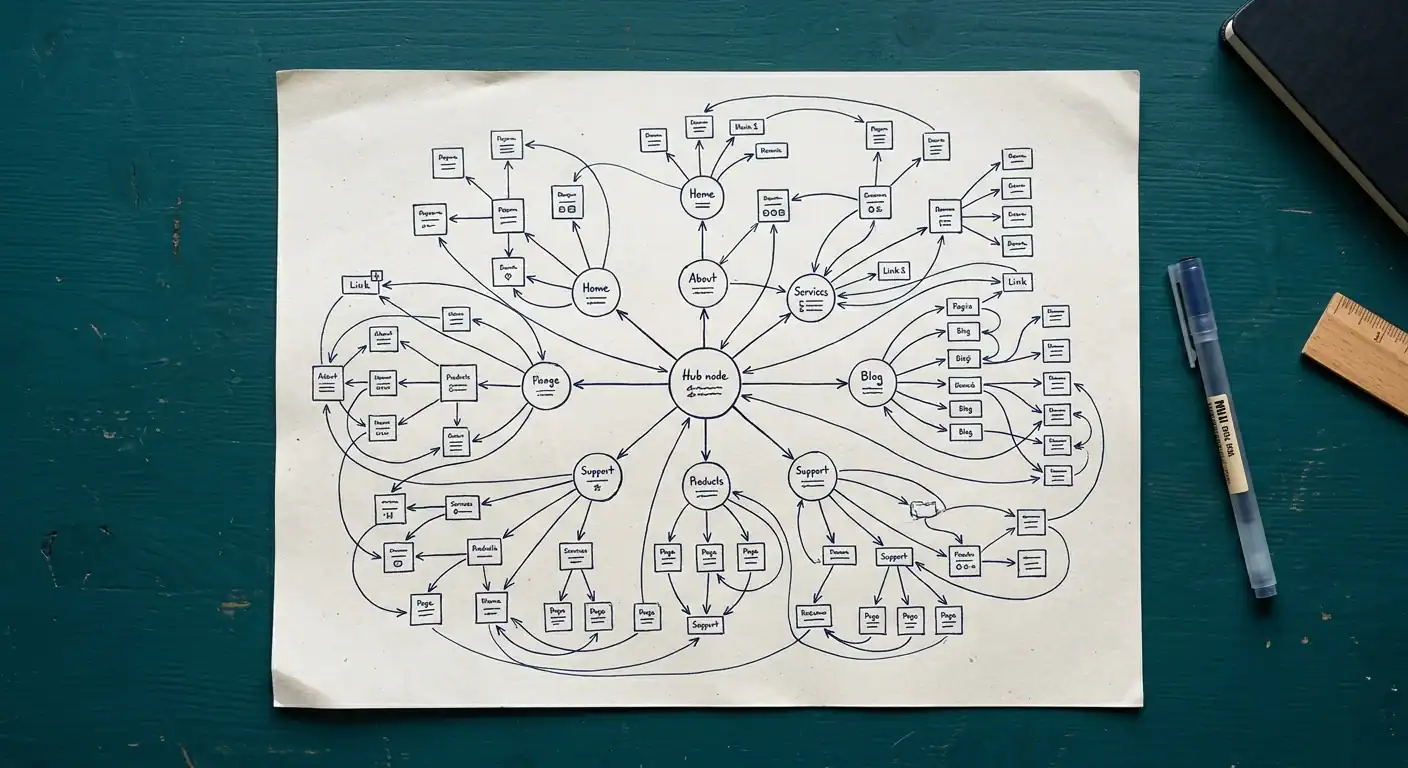
Your XML sitemap tells Google which pages exist on your site, which ones are most important, and when they were last updated. Without a sitemap, Google has to discover pages by following links — which means some pages might never get found.
How to fix it: SEOPress generates an XML sitemap automatically (typically at /sitemaps.xml). Make sure it’s enabled in SEOPress settings. Submit the sitemap URL to Google Search Console under Sitemaps. Verify it includes all your important pages and excludes pages you don’t want indexed (like thank-you pages, admin pages, or tag archives).
Common sitemap mistakes: including noindexed pages (sends conflicting signals to Google), not submitting the sitemap to Search Console (Google might not find it), and having an outdated sitemap that doesn’t include new pages.
5. No HTTPS (Missing SSL Certificate)

If your site still runs on http:// instead of https://, Google penalizes you in rankings, and browsers show a “Not Secure” warning that scares visitors away. HTTPS has been a confirmed ranking signal since 2014. In 2026, there’s zero excuse for not having it.
How to fix it: Most hosting providers include free SSL certificates (via Let’s Encrypt). Install the certificate through your hosting control panel — usually a one-click process. Then set up a 301 redirect from all http:// URLs to their https:// equivalents. Update your WordPress settings (Settings → General) to use https:// for both the WordPress Address and Site Address.
6. Poor Mobile Experience
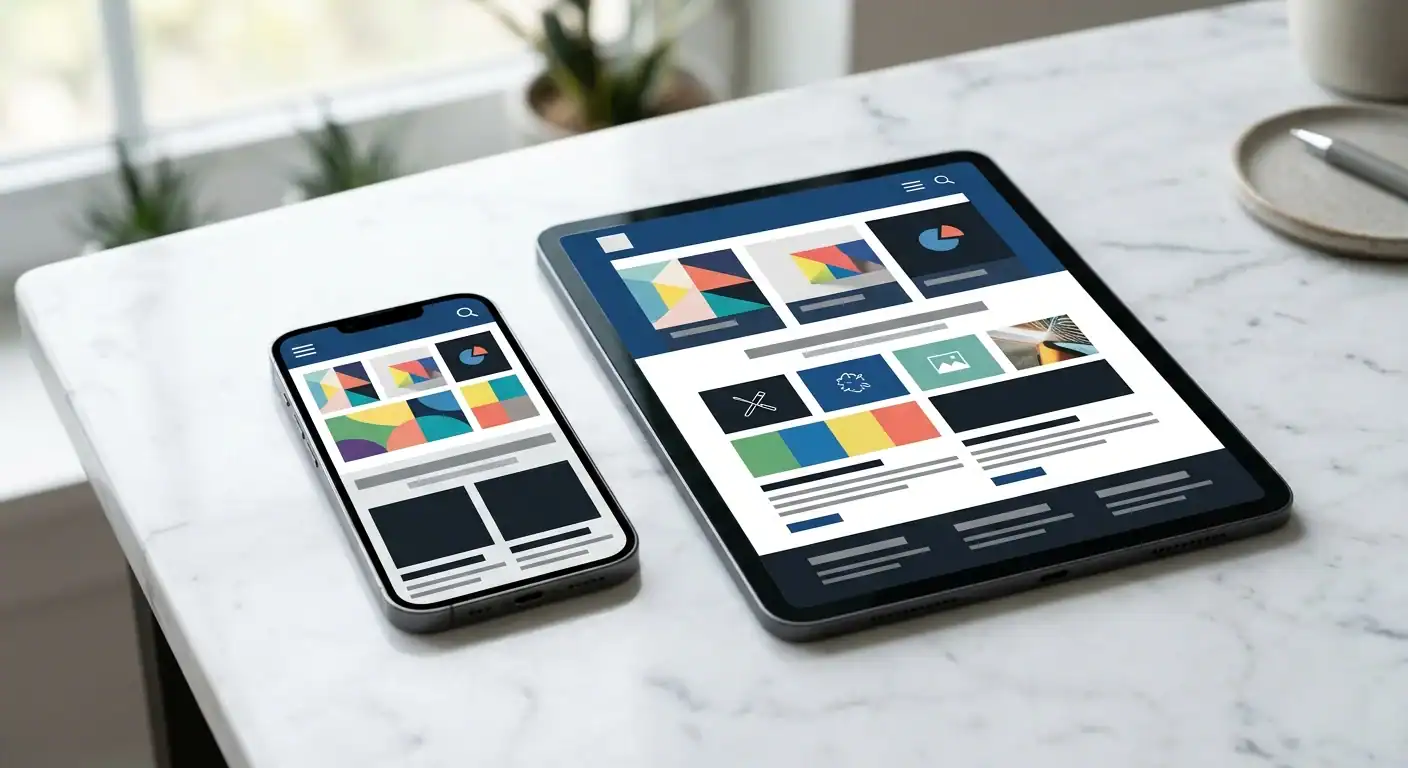
Google uses mobile-first indexing — it primarily evaluates the mobile version of your site for rankings on ALL devices, including desktop. If your mobile experience is broken — tiny text, overlapping elements, buttons too close together, horizontal scrolling, forms that are unusable on phones — your rankings suffer everywhere.
Over 60% of all web traffic is mobile. A site that fails on mobile fails for the majority of its visitors and the entirety of Google’s ranking evaluation.
How to fix it: Use Google’s Mobile-Friendly Test (Google’s Mobile-Friendly Test) to check every important page. Fix issues flagged: increase font sizes (minimum 16px for body text), increase tap target sizes (minimum 44×44 pixels), ensure content fits within the viewport without horizontal scrolling, and compress images for faster mobile loading.
If your site was built before 2019 on an older theme that isn’t responsive, a rebuild on a modern WordPress theme is often faster and cheaper than trying to retrofit mobile support onto outdated code. See our mobile-first design guide.
7. Missing Schema Markup (Structured Data)

Schema markup tells Google exactly what your content is about in a structured format it understands perfectly. Without it, Google has to guess. With it, Google knows your business name, address, phone number, services, reviews, FAQs, and more — and can display rich snippets in search results.
Rich snippets include star ratings, business hours, FAQ dropdowns, pricing information, and other enhanced elements that make your listing stand out in search results. Pages with rich snippets get 20-30% higher click-through rates than plain results.
How to fix it: Implement these schema types as a minimum:
- LocalBusiness / ProfessionalService: On your homepage. Includes your NAP (name, address, phone), business type, hours, and service area
- Organization: Your logo, social profiles, founding date, and description
- BreadcrumbList: On every page. Shows your site hierarchy in search results
- FAQPage: On any page with FAQ content. Enables FAQ dropdowns in search results
- BlogPosting / Article: On blog posts. Helps Google understand author, publish date, and content type
SEOPress Pro handles most of these with built-in settings — Local Business, Breadcrumbs, and custom structured data types are all point-and-click. Read our complete schema markup guide for implementation details.
8. Crawl Errors and Accidentally Blocked Pages
If important pages are blocked by your robots.txt file or accidentally set to “noindex,” Google can’t see them. This is more common than you’d think — I’ve audited sites where the entire blog was noindexed because of a plugin setting, or where the robots.txt file was blocking Google from crawling essential service pages.
We actually found and fixed this exact issue on the Ocasio Consulting website during our initial SEO setup — both Posts and Pages were set to noindex in SEOPress, which meant Google couldn’t see any of our content.
How to fix it: Check Google Search Console’s Pages report (formerly Coverage report) for errors. Look for pages with “Excluded by ‘noindex’ tag” or “Blocked by robots.txt.” Verify your robots.txt file allows crawling of all important content. Check your SEO plugin settings to ensure Posts and Pages are not set to noindex at the post type level.
9. Duplicate Content Issues

When multiple URLs serve the same (or very similar) content, Google doesn’t know which version to rank. This dilutes your ranking power across multiple URLs instead of concentrating it on one.
Common causes of duplicate content:
- www vs non-www: example.com and www.example.com both resolve to the same site without a redirect
- HTTP vs HTTPS: Both versions accessible without redirecting http to https
- URL parameters: example.com/page and example.com/page?ref=facebook serve the same content with different URLs
- Pagination: Blog archive pages (page/1/, page/2/) creating duplicate content paths
- Category and tag archives: Showing the same post excerpts across multiple archive pages (this is why we noindexed categories and tags on this site)
How to fix it: Set up canonical tags (telling Google which version is the “real” one for each piece of content). Implement 301 redirects from www to non-www (or vice versa) and from http to https. Use SEOPress to set canonical URLs and noindex tag/category archives. Check for URL parameter issues in Google Search Console.
10. Missing Image Alt Text
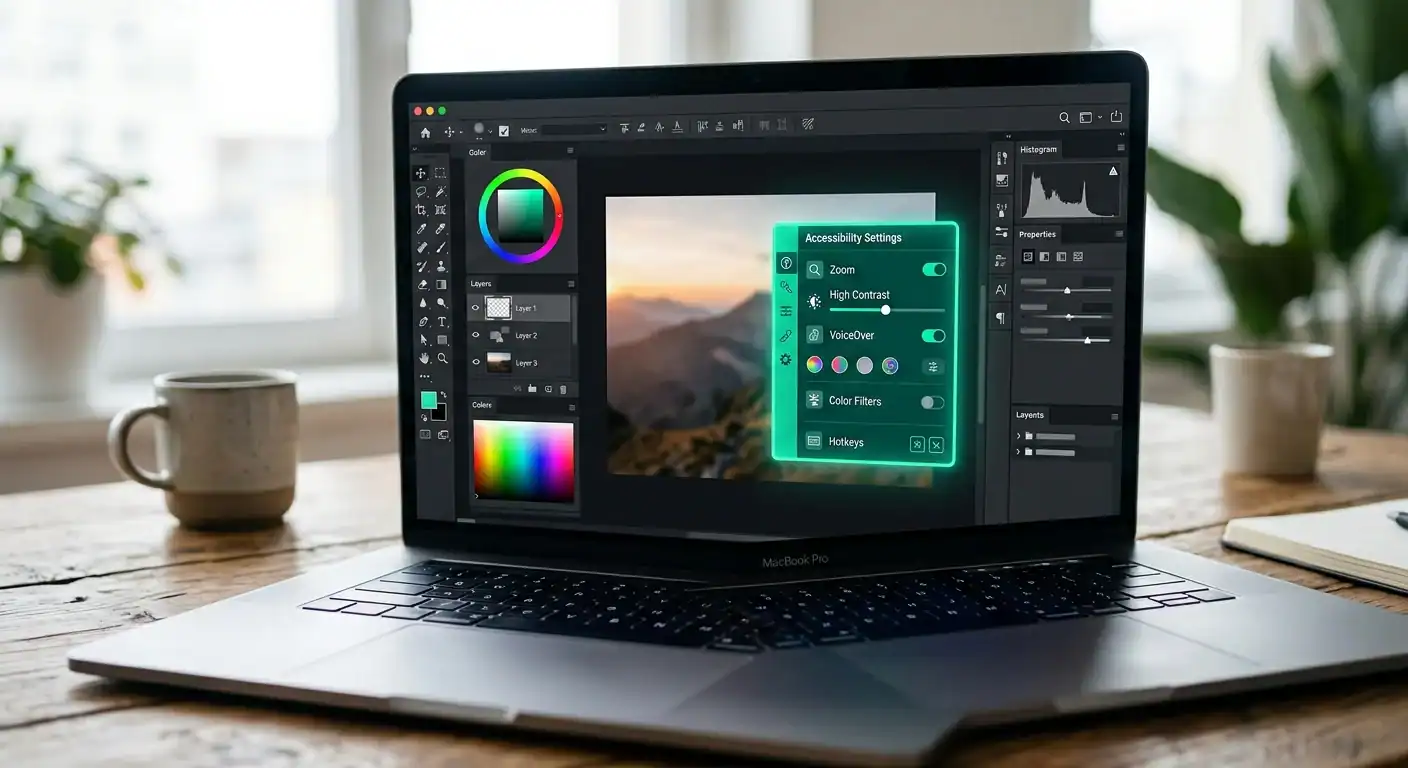
Alt text serves three purposes: it helps Google understand what your images show (images are still mostly opaque to search engines without text descriptions), it improves accessibility for visitors using screen readers, and it provides another opportunity to include relevant keywords naturally.
Most websites have dozens or hundreds of images with no alt text — that’s dozens of missed opportunities for Google to understand your content and for your images to appear in Google Image Search results.
How to fix it: Add descriptive alt text to every image on your site. Don’t keyword-stuff — write natural descriptions. “Dennis Ocasio reviewing SEO results on laptop at Orlando office” is good. “SEO Orlando SEO services Orlando best SEO Orlando” is spam. SEOPress can auto-generate alt text from filenames, but custom-written alt text tailored to each image is always better.
The Complete Technical SEO Checklist
Use this checklist to audit your site. Check each item and fix anything that fails:
- ☐ Site loads under 3 seconds on mobile (pagespeed.web.dev)
- ☐ HTTPS enabled with valid SSL certificate (no mixed content warnings)
- ☐ XML sitemap generated and submitted to Google Search Console
- ☐ Every page has a unique, keyword-optimized title tag (under 60 chars)
- ☐ Every page has a unique meta description (under 160 chars)
- ☐ No broken internal links (check monthly with Screaming Frog or SEOPress)
- ☐ Mobile-friendly design (passes Google’s Mobile-Friendly Test)
- ☐ Schema markup on homepage (LocalBusiness), all pages (BreadcrumbList), and FAQ pages (FAQPage)
- ☐ No accidental noindex on important pages (check SEOPress settings and Search Console)
- ☐ Canonical tags correctly set on all pages
- ☐ All images have descriptive alt text
- ☐ Robots.txt allows crawling of all important content and points to your sitemap
- ☐ No redirect chains (every redirect is a single hop from old URL to new URL)
- ☐ Breadcrumbs enabled for site hierarchy display in search results
- ☐ 301 redirects in place for any changed or deleted URLs
- ☐ Google Search Console verified and monitored weekly for new errors
How to Audit Your Technical SEO for FREE
You don’t need expensive tools to audit your technical SEO. Here are the free tools that cover 90% of what you need:
- Google Search Console (free): Shows crawl errors, indexing issues, Core Web Vitals, mobile usability problems, and which pages Google has indexed. Check it weekly. This is the single most important SEO tool
- Google PageSpeed Insights (free): Tests your page speed and Core Web Vitals. Gives specific, actionable recommendations. Test your homepage and your top 5 service/blog pages
- Screaming Frog SEO Spider (free up to 500 URLs): Crawls your entire site to find broken links, missing tags, duplicate content, redirect chains, and orphan pages. Run a crawl monthly
- Google Mobile-Friendly Test (free): Tests if your pages pass Google’s mobile requirements. Quick, specific feedback on what’s wrong
- Google Rich Results Test (free): Tests if your schema markup is valid and eligible for rich snippets in search results
- GTmetrix (free): Detailed waterfall analysis showing exactly what’s slowing your site down, in what order files load, and where bottlenecks occur
How Often Should You Check Technical SEO?
- Weekly: Google Search Console for new errors, crawl issues, and manual actions
- Monthly: Full site crawl with Screaming Frog. Speed test on key pages. Broken link check
- Quarterly: Complete technical audit covering all 10 items above. Schema validation. Mobile experience review
- After any major change: Any time you redesign, migrate, add new plugins, or make significant structural changes, run an immediate audit. Changes break things, and the faster you catch issues, the less ranking damage they cause
Frequently Asked Questions
How often should I audit my technical SEO?
Monthly for a quick check (speed, broken links, Search Console errors). Quarterly for a thorough audit. Immediately after any major site changes (redesign, migration, plugin updates). Technical issues that go undetected for months can cause significant ranking damage.
Can I fix technical SEO myself?
Many fixes are straightforward: adding alt text, installing an SSL certificate, submitting a sitemap, setting up canonical tags in your SEO plugin. More complex issues — redirect chains, render-blocking resource optimization, advanced schema implementation, and crawl budget optimization — may need a developer. Start with the easy wins and hire help for the complex stuff.
Does technical SEO affect local rankings?
Absolutely. Technical SEO is the foundation for ALL rankings — local and national. A slow, broken, poorly structured site ranks poorly for everything. Google doesn’t give local businesses a pass on technical issues. Fix the technical foundation first, then build content, links, and local signals on top of it.
What’s the most impactful technical SEO fix?
Page speed. It affects rankings, user experience, and conversion rates simultaneously. One fix, three benefits. If your site takes 5 seconds to load and you get it to 2 seconds, you’ll see ranking improvements, lower bounce rates, and higher conversion rates — all from one optimization effort.
What’s the relationship between technical SEO and content?
Technical SEO makes your content findable. You can have the best blog post in the world, but if Google can’t crawl it (blocked by robots.txt), can’t index it (set to noindex), can’t understand it (no schema markup), or won’t rank it (too slow, not mobile-friendly), that content generates zero value. Technical SEO is the plumbing. Content is the water. You need both.
Do I need a developer for technical SEO?
For basics (SEO plugin configuration, image compression, sitemap submission), no. For advanced work (custom schema implementation, server configuration, render optimization, redirect mapping), a developer saves time and prevents mistakes. Our SEO services include full technical audits as part of every engagement.
Next Steps
Want a technical SEO audit of your website? We’ll crawl your site, identify every technical issue, and provide a prioritized fix list with estimated impact. Schedule a free consultation or call (321) 300-4837.
Our SEO services include comprehensive technical audits, implementation of all fixes, and ongoing monitoring so issues don’t come back.
Read more: Website Speed Optimization | Schema Markup Guide | How Long Does SEO Take
If this raised more questions than it answered, we’ve got answers to common SEO questions in our FAQ — covering everything from pricing and timelines to what results actually look like. You can also read verified client reviews from businesses we’ve helped across Orlando and Central Florida.